How to Get a Starbucks Receipt From the App or Store
Ready to create your own? Use our free receipt generator — no account needed.
Generate Starbucks Receipt →On this page
If you need a Starbucks receipt, the first step is to recover the original order details — the printed store receipt, the mobile order in the Starbucks app, or the transaction record tied to your Starbucks Card.
For work coffee meetings or travel records, an itemized receipt is stronger than a bare card charge. The IRS meal-expense guidance is the clearest reason to keep the original paid record.
Quick Answer
To get a Starbucks receipt, check your mobile order history in the Starbucks app, ask a barista to reprint the last transaction, or open your Starbucks Card transaction history at starbucks.com.
Where Starbucks Receipts Usually Come From
Most Starbucks receipts trace back to one of these sources:
- the printed receipt handed to you at the counter or drive-through
- the mobile order confirmation stored in the Starbucks app
- the transaction history of a registered Starbucks Card
- an emailed receipt, if the store offers it for your order
How to Recover a Starbucks Receipt
1. Ask the barista to reprint it. If you just paid in store, the register can usually reprint the most recent transaction. This is the fastest option while you're still there.
2. Check the Starbucks app (mobile orders). Mobile orders placed through the app keep their item details in your account. Open the app and review your recent order activity for the date, store, and items.
3. Open your Starbucks Card transaction history. If you paid with a registered Starbucks Card or the app's stored balance, sign in at starbucks.com, open the card, and view its transaction history. It lists the date, store location, and amount for each purchase — useful when you no longer have the paper slip.
4. Request an email receipt. Some locations can email a receipt at the time of purchase, so it's worth asking the barista if you know you'll need a record.
What a Useful Starbucks Receipt Should Include
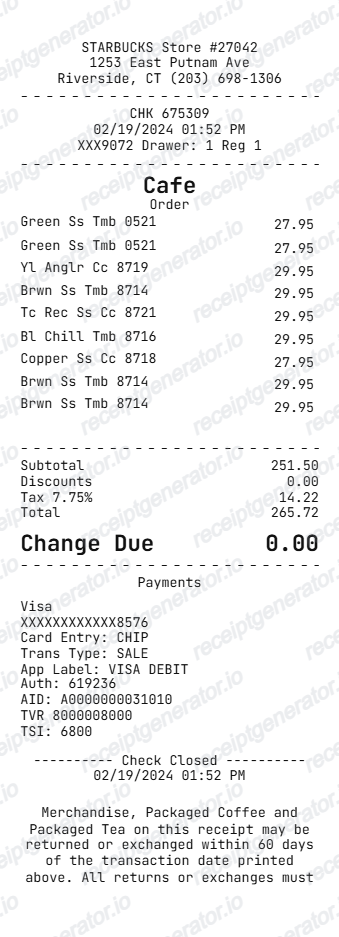
For records or reimbursement, a Starbucks receipt should clearly show:
- the store location and store number
- the date and time of purchase
- each drink or food item, with size and modifiers
- subtotal, tax, and total paid
- the payment method (Starbucks Card, card last four, or cash)
A simple bank charge that only says "STARBUCKS" rarely satisfies an expense policy on its own, which is why the itemized record matters.
Using a Starbucks Receipt for Reimbursement
Starbucks purchases show up constantly in expense reports — client coffees, working sessions, and travel. Finance teams typically want the store, date, itemized order, and total, not just the card amount. Recover the original order detail first, then keep a clean copy for your file.
Need a Structured Starbucks Record?
If you've verified the original order details and want a cleaner version for your files, use the Starbucks Receipt Generator.
Open the Starbucks Receipt Generator
Create a structured Starbucks-style receipt using the verified details from your order.
Related Guides
Final Takeaway
Start with the original record — the printed slip, the mobile order in the app, or your Starbucks Card transaction history. Once the details are confirmed, you can organize them into a clean receipt record for your files if needed.
FAQ
If you paid with a registered Starbucks Card, sign in at starbucks.com and open the card's transaction history to see the date, store, and amount.
For mobile orders, the order details stay in the Starbucks app. For an in-store purchase, a barista can usually reprint the last transaction at the register.
Yes. Starbucks receipts are commonly used for client coffee meetings, travel, and per-diem records.
Make sure the copy shows the store location, date, items, and total paid rather than just a card charge.