How to Download a Flipkart Invoice (and Rebuild a Copy)

Ready to create your own? Use our free receipt generator — no account needed.
Generate Flipkart Invoice →On this page
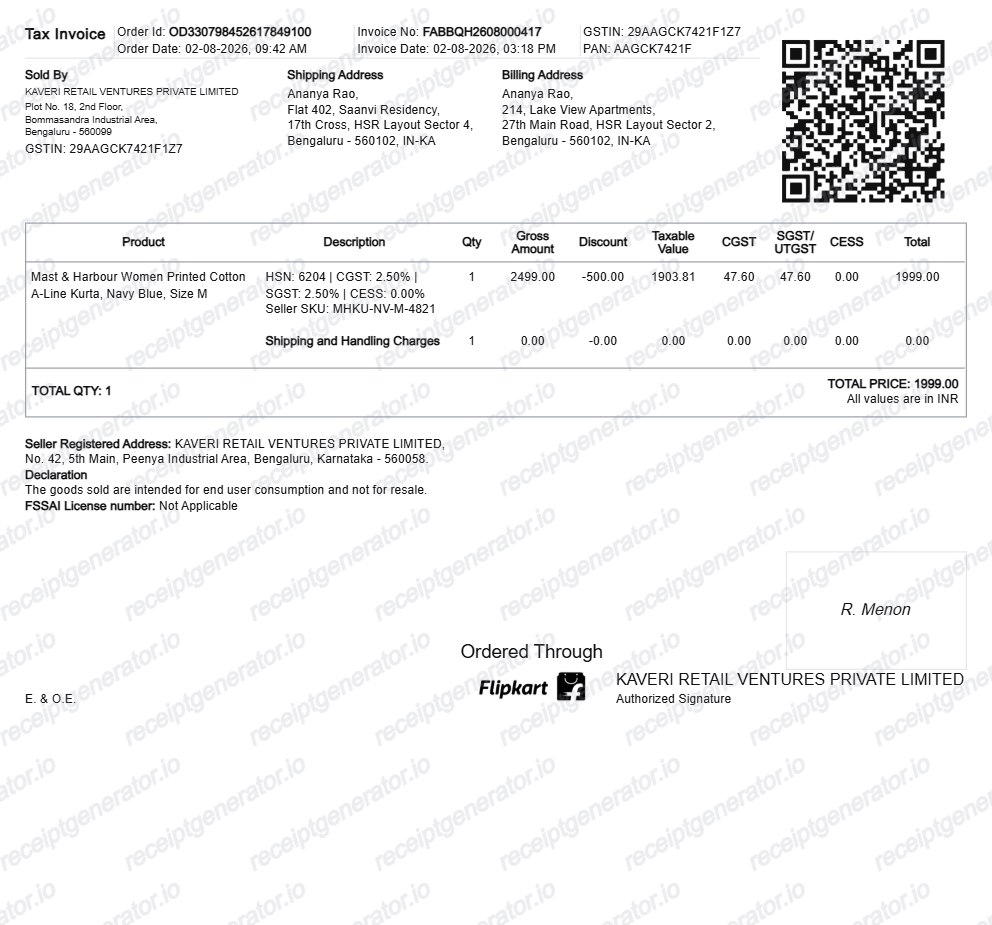
A Flipkart invoice is the GST tax invoice issued for your order. Because Flipkart is a marketplace, the invoice comes from the third-party seller that fulfilled the order, and it carries that seller's GSTIN.
Quick Answer
Find your Flipkart invoice under My Orders → select the order → Download Invoice. It is a seller-issued GST tax invoice with HSN items and the CGST/SGST or IGST split.
Where to find it
- Open Flipkart and go to My Orders.
- Select the order you need.
- Choose Invoice or Download Invoice.
The file is a GST tax invoice in PDF form, issued by the seller.
What the invoice includes
- sold-by seller name and GSTIN
- order ID and order date
- invoice number and invoice date
- billing and shipping details
- HSN line items with taxable value
- CGST/SGST or IGST rate and amount
- the grand total and amount in words
Rebuild a clean copy
If the original invoice is missing or you need a clearer record, rebuild it with the free Flipkart invoice generator. Edit the seller GSTIN, order ID, HSN items, and tax split, then export a print-ready PDF.
The same marketplace format applies to Amazon India invoices and Myntra invoices. For the underlying rules, see our GST invoice format guide.
FAQ
Open Flipkart, go to My Orders, select the order, and choose the invoice or 'Download Invoice' option. The GST tax invoice is issued by the third-party seller, not Flipkart itself.
It is a GST tax invoice with the sold-by seller name and GSTIN, the order ID and invoice number, billing and shipping details, HSN line items, the CGST/SGST or IGST split, and the grand total.
If the original invoice is unavailable, you can rebuild a clean copy with the same fields — seller details, order ID, items, taxes, and total — for your records.